Environment
Every way of working is an environment
An environment decides which agents work, what they know, which rules they follow and what I see while they work. The picture shows a made-up environment for building a recipe website.
On the left I talk with an agent, in the middle are the jobs and notes, and on the right what happened, my working time and the tokens used.
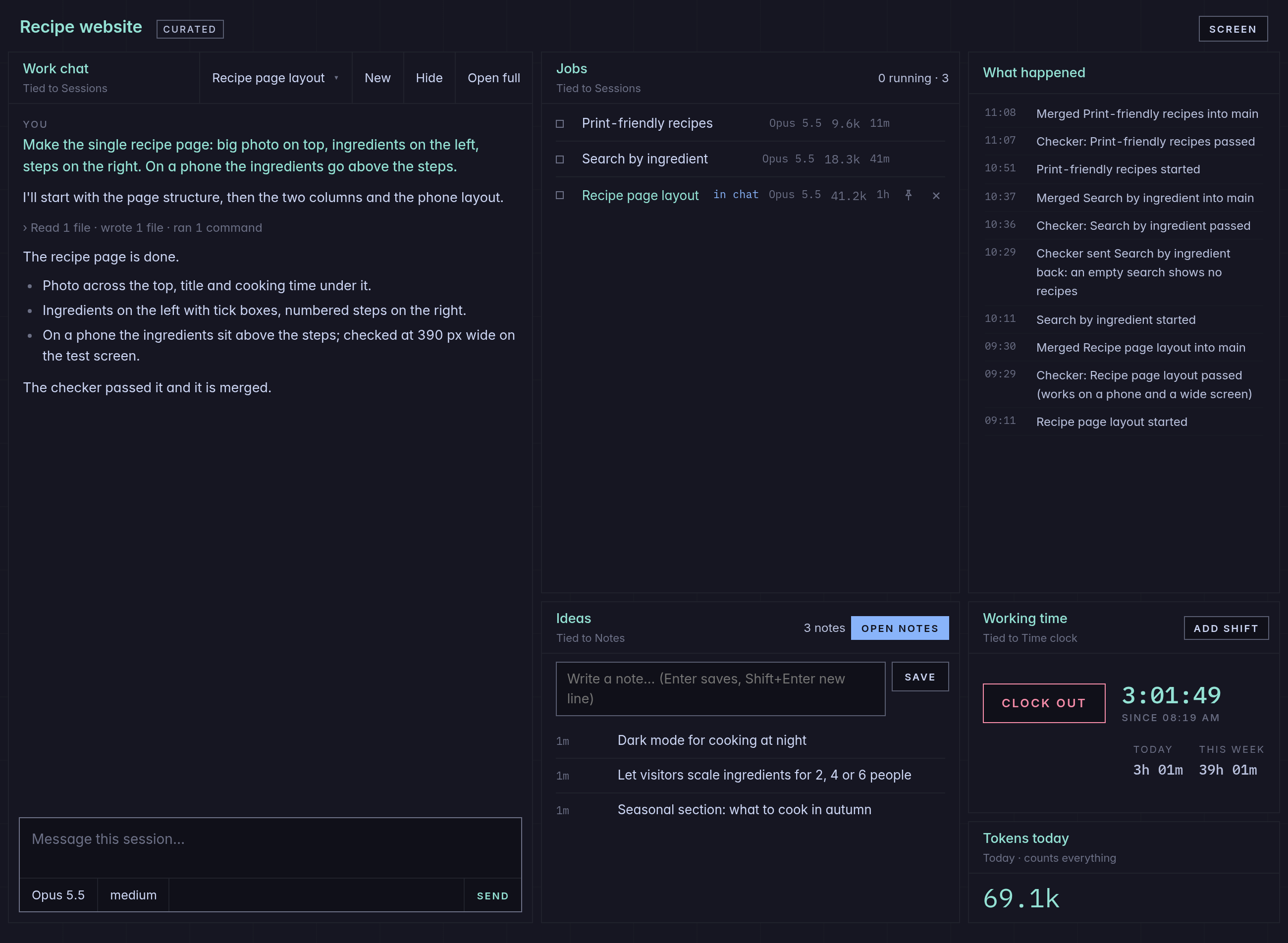
FIG. 1Environment screen: chat with an agent, jobs, notes, what happened, working time and tokens. Builder
Blocks and lines
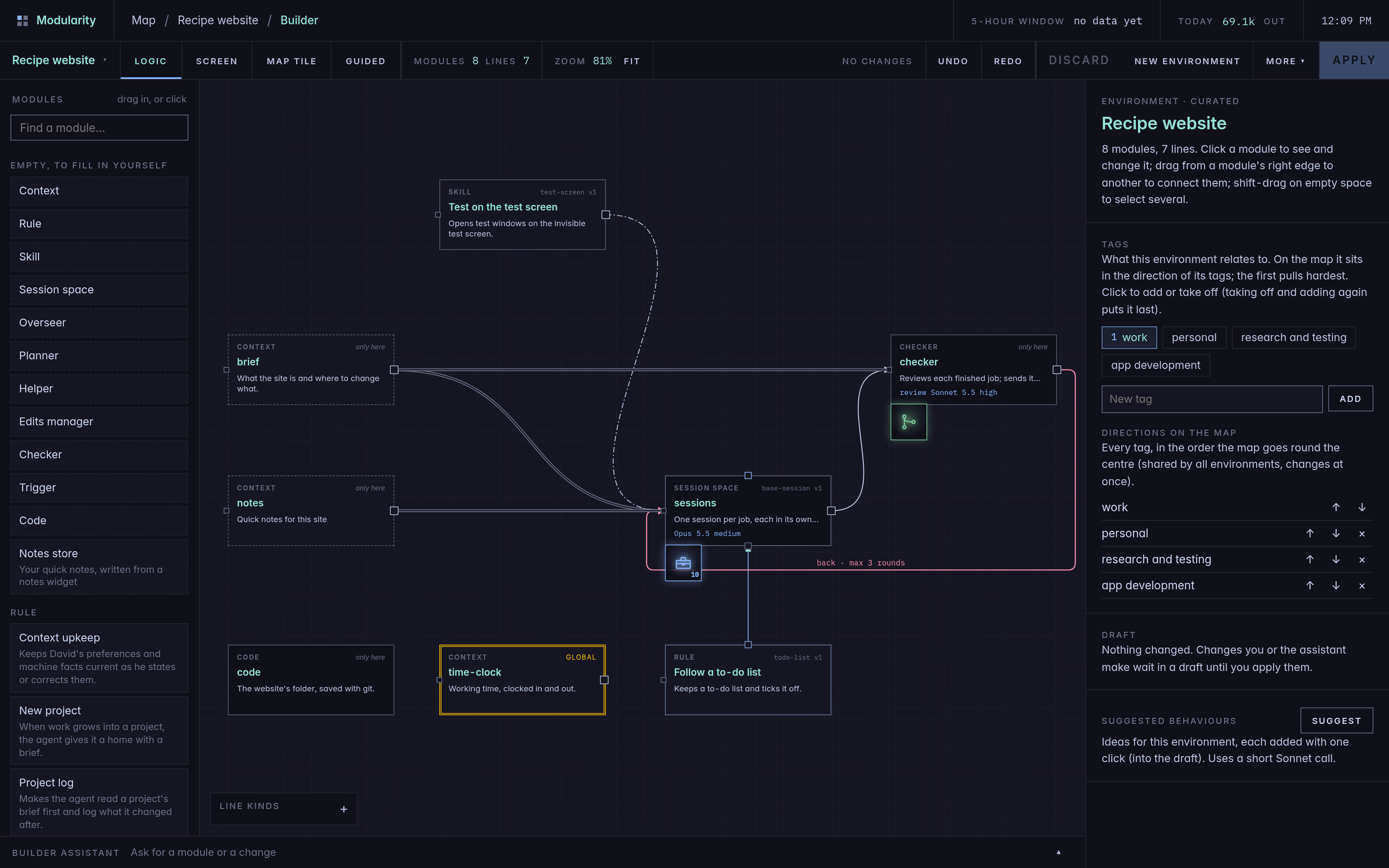
In the builder an environment is put together from blocks. A block can be an agent, text an agent is given (a project description, notes), a rule it must always follow, a skill it uses when needed, a tool or a check.
A line between two blocks decides what goes where, and its kind decides what is passed: the whole text or only an index, rules, work to be checked, a return for fixes, a question to a helper. Without a line nothing happens, so the drawing always shows how the environment really works.
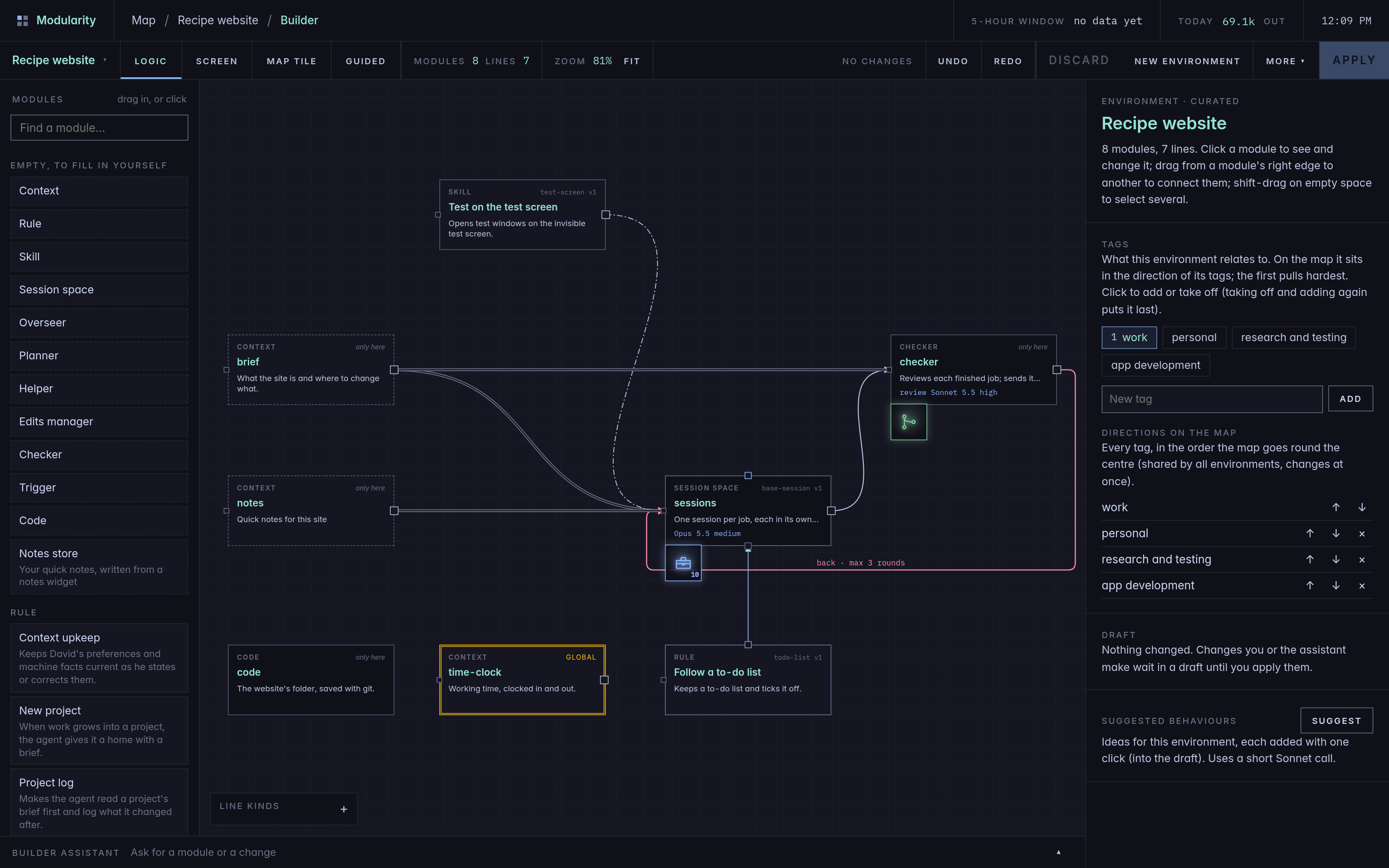
FIG. 2Builder: the environment's blocks and the lines that connect them. Wiring example
What the wiring gives me
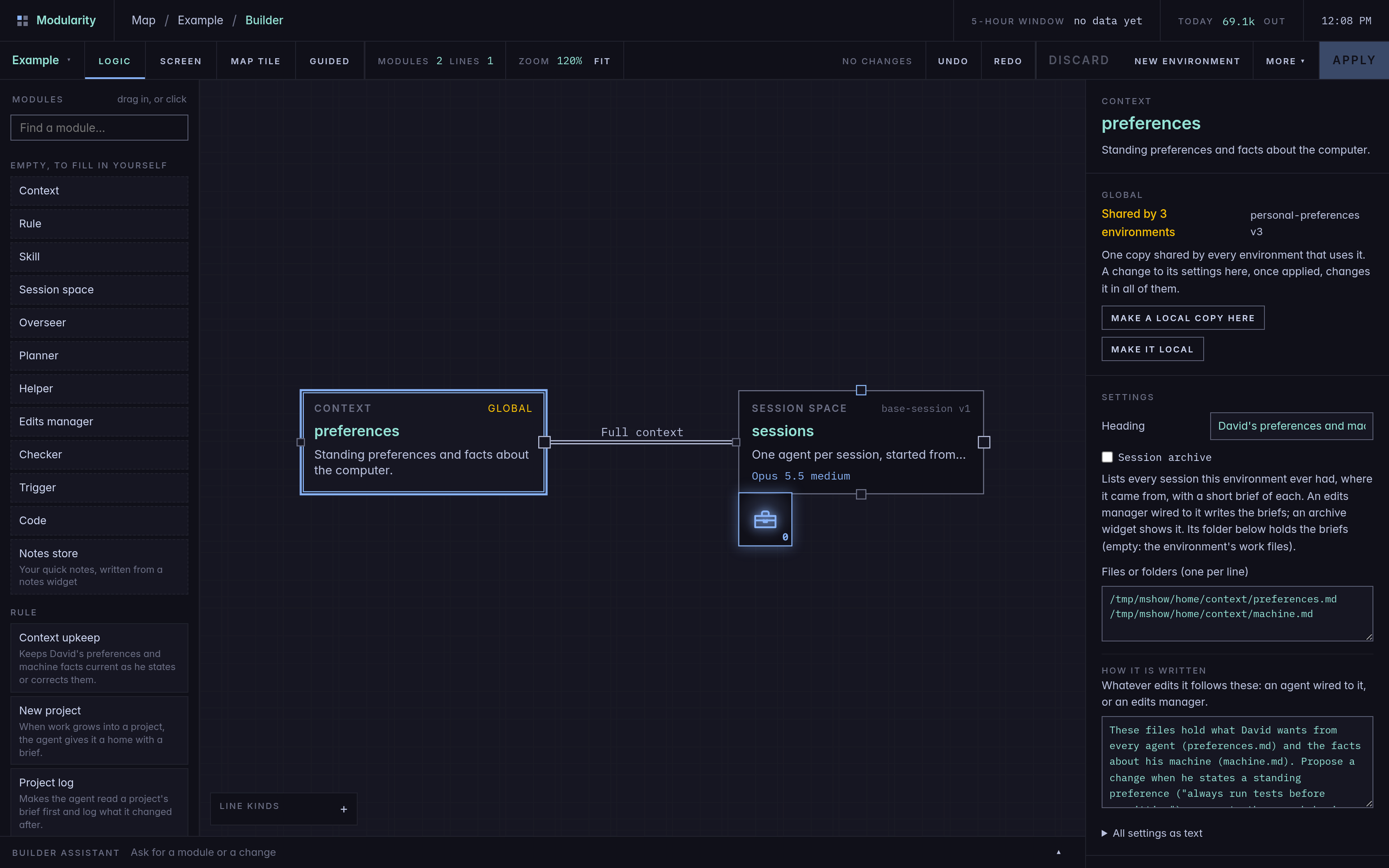
The simplest example: an environment with two blocks. On the left are my preferences (how I want agents to work and facts about the computer), on the right a sessions block. A full context line connects them.
Because of that line, every session I start in a chat widget tied to that block gets my preferences, the whole text. If I change the line to "Index only", the session gets only a list of those files and reads them when it needs them. Without the line the session does not know the preferences exist.
The preferences are a global block (the yellow GLOBAL mark): there is one copy shared by every environment that uses it, so a change made in one environment shows up in all of them at once. A local block belongs only to its own environment and a change to it goes nowhere else. Only text blocks can be global; tools, skills and rules are always local.
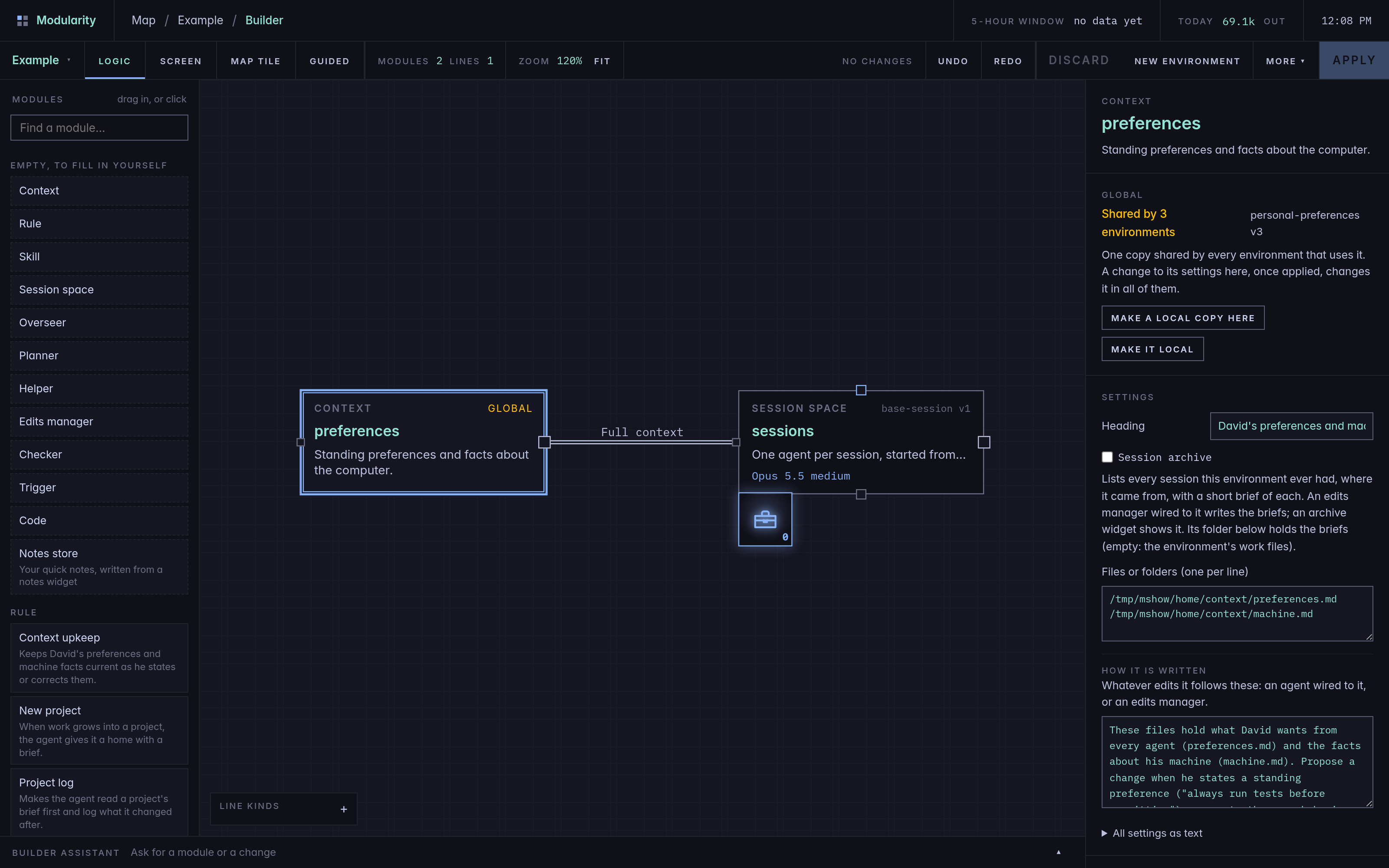
FIG. 3Preferences wired to the sessions with a full context line; on the right, the global block's settings. Widgets
The screen is made of widgets
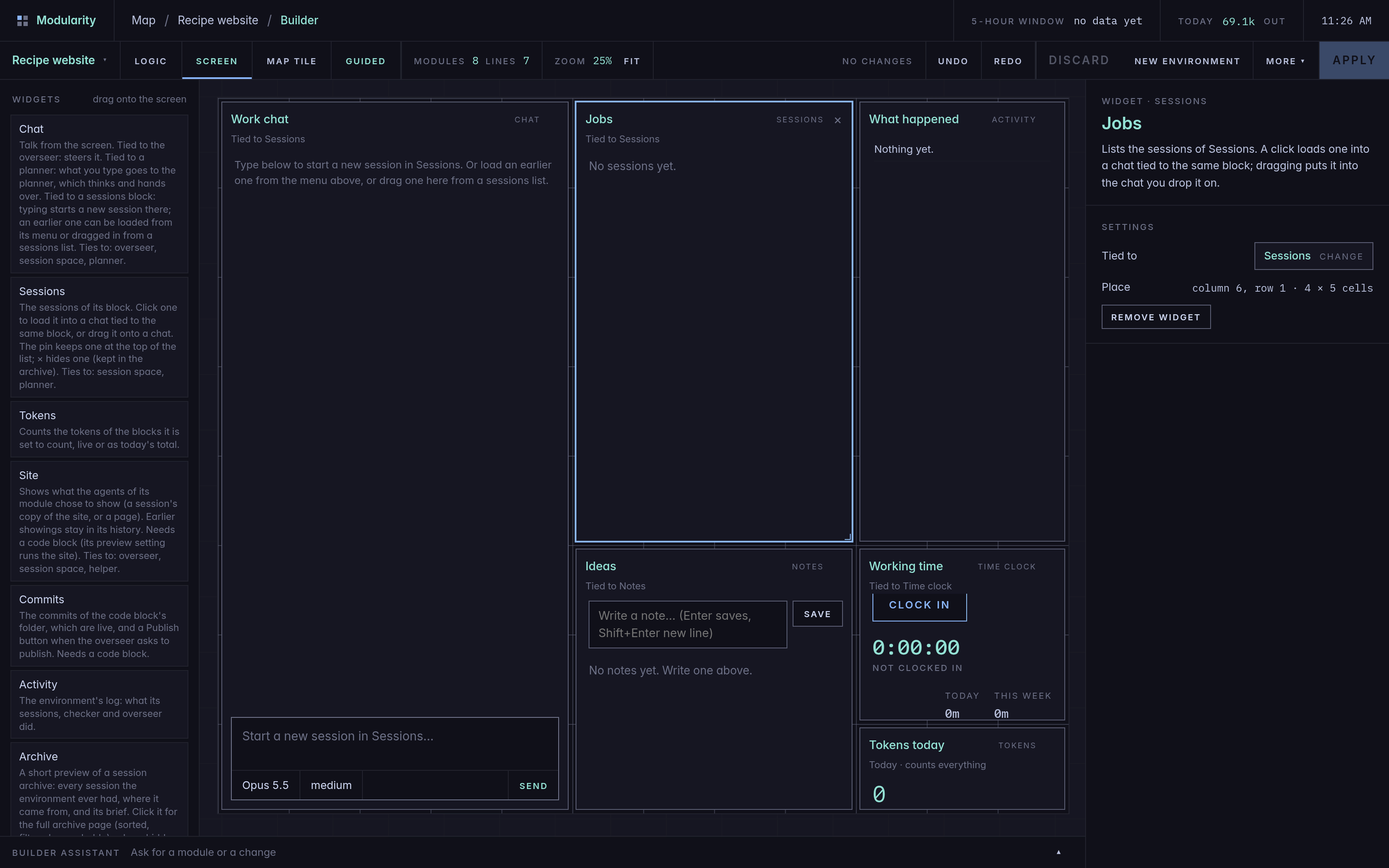
What I see when I open an environment is not fixed in advance. It is the widgets I placed on a grid in the Screen tab: chat, job list, event log, notes, a working-time clock, a token counter and more.
Each widget is tied to one block and shows only that block: the chat to the jobs block, the notes to the notes block, the clock to the working-time block. Widgets are moved and resized by dragging, and an environment without widgets is an empty page.
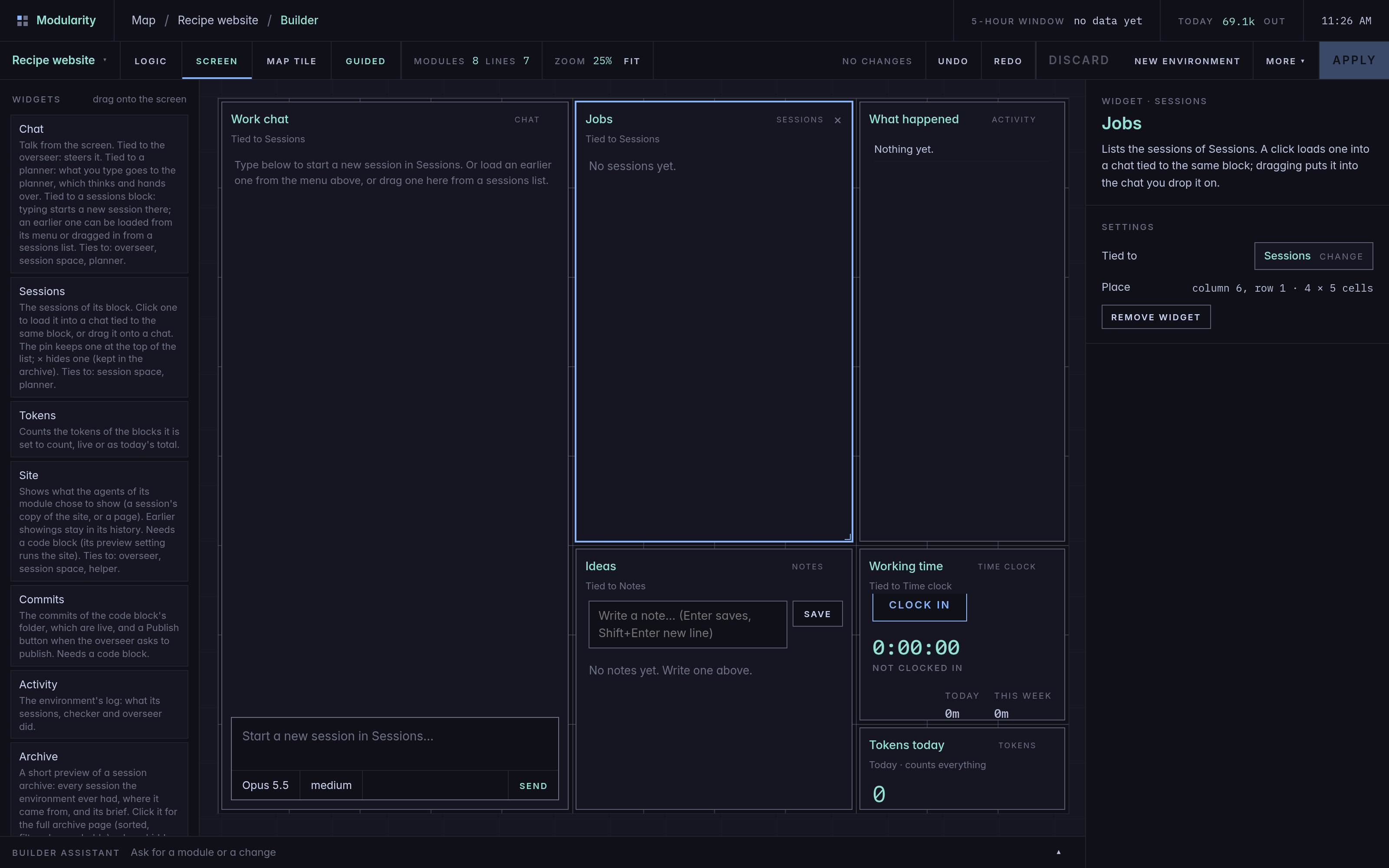
FIG. 4Screen tab: widgets on a grid, each tied to one block. Guide
A guide for building environments
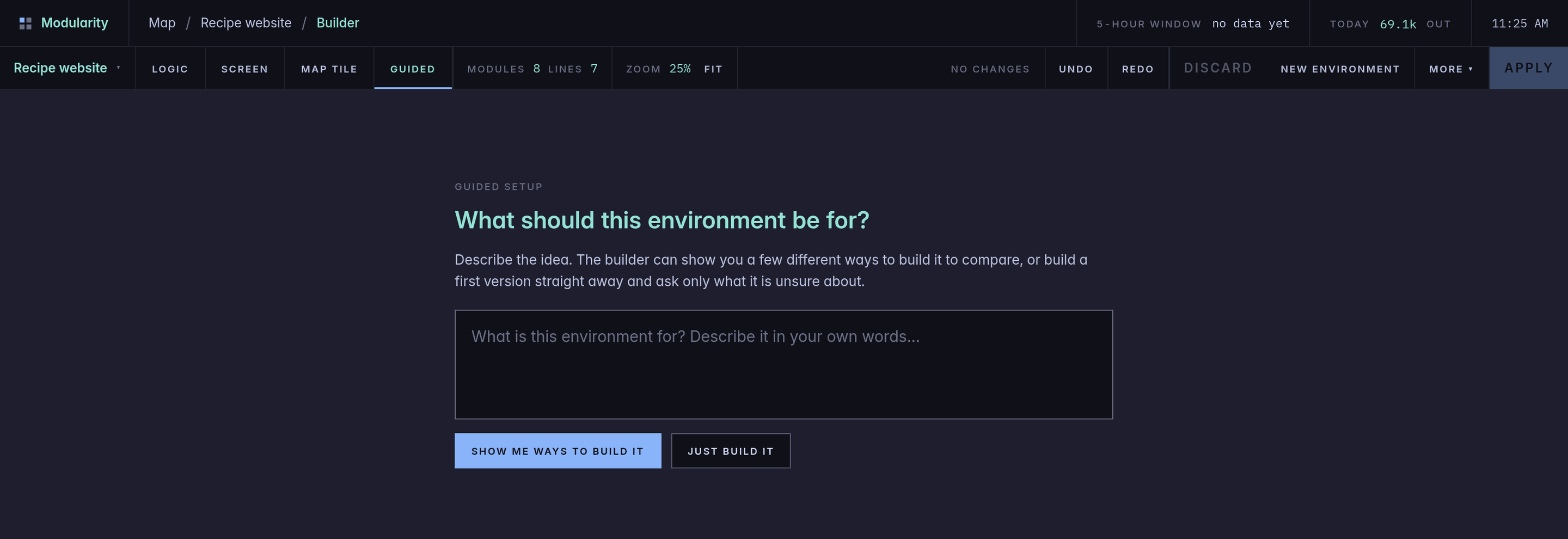
I do not have to assemble a new environment by hand. In the guide I describe what I want in my own words, and the builder either suggests a few ways to build it so I can compare them, or builds a first version straight away and asks only what it is unsure about.
Everything the builder makes stays in a draft until I apply it.
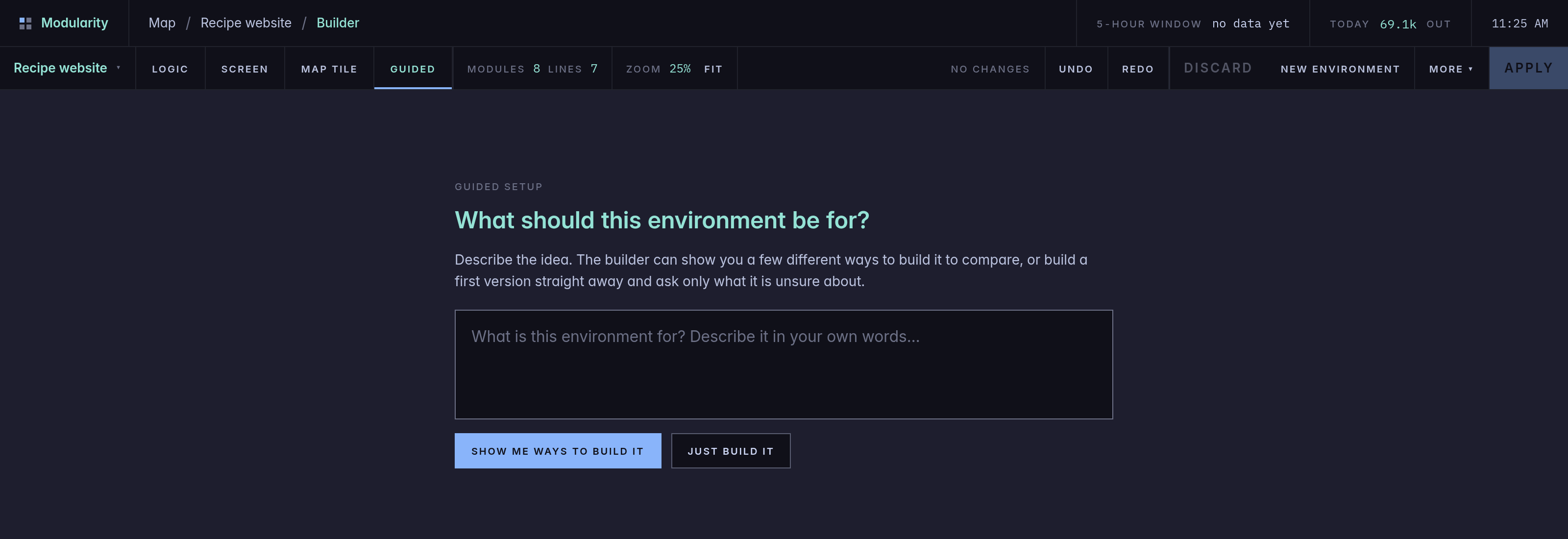
FIG. 5Guide: describe it in your own words, then get options or a first version. Library
A library of ways of working
The library is an index of 316 ways of working with AI agents collected from the internet, sorted by kind: whole workflows, agent roles, know-how, always-on rules, checks, memory, outside tools and references.
Each entry says what it does, what it needs and how it is turned into blocks. Search and topics help find the right one quickly.
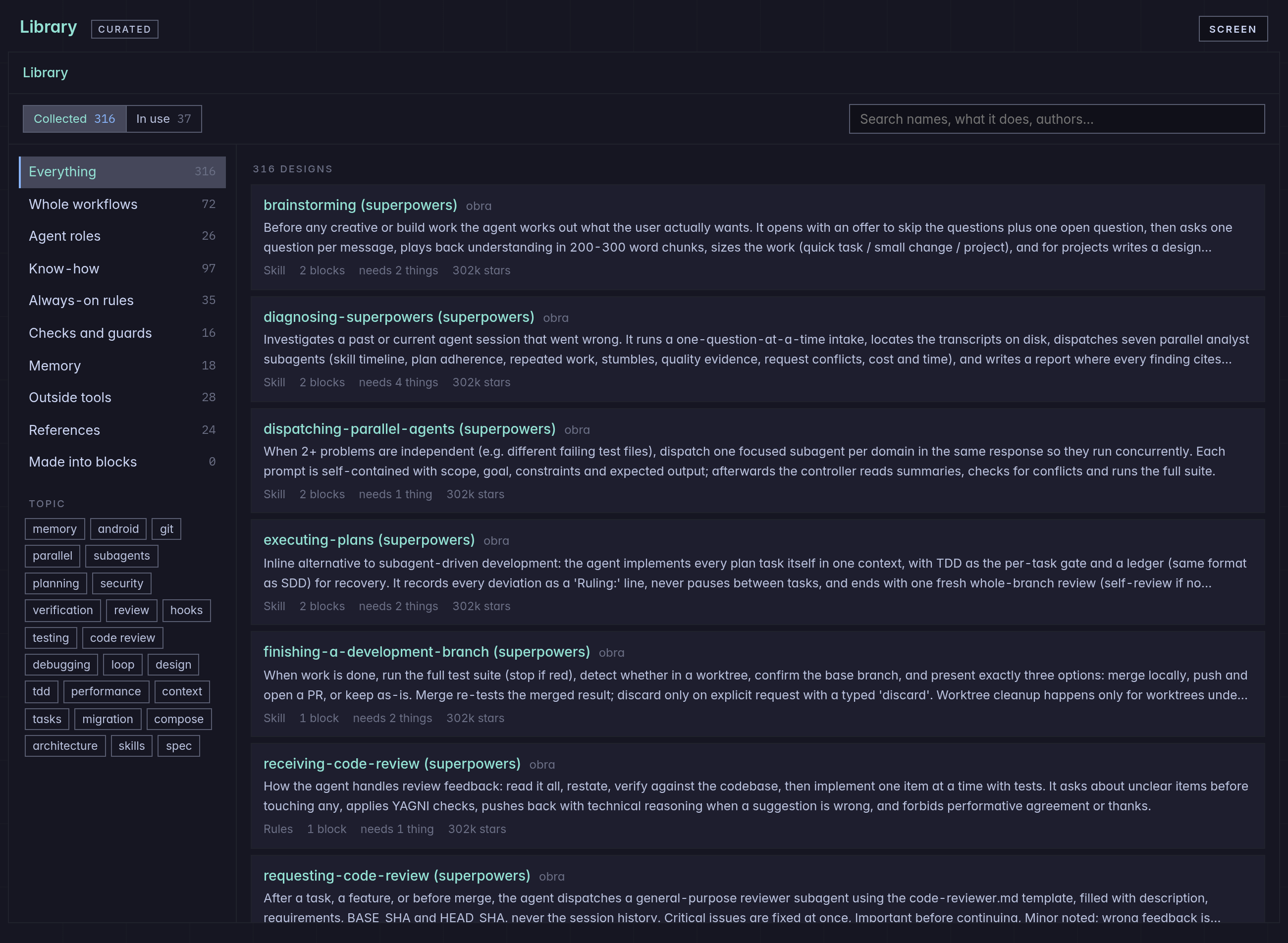
FIG. 6Library: 316 ways of working by kind and topic. Library entry
A ready way of working as blocks
Every entry is drawn as blocks and lines, just like in the builder, with a description of each block.
From there the blocks can be copied into any environment, saved as a template, or handed to the builder to make a new environment from them or build them into an existing one.
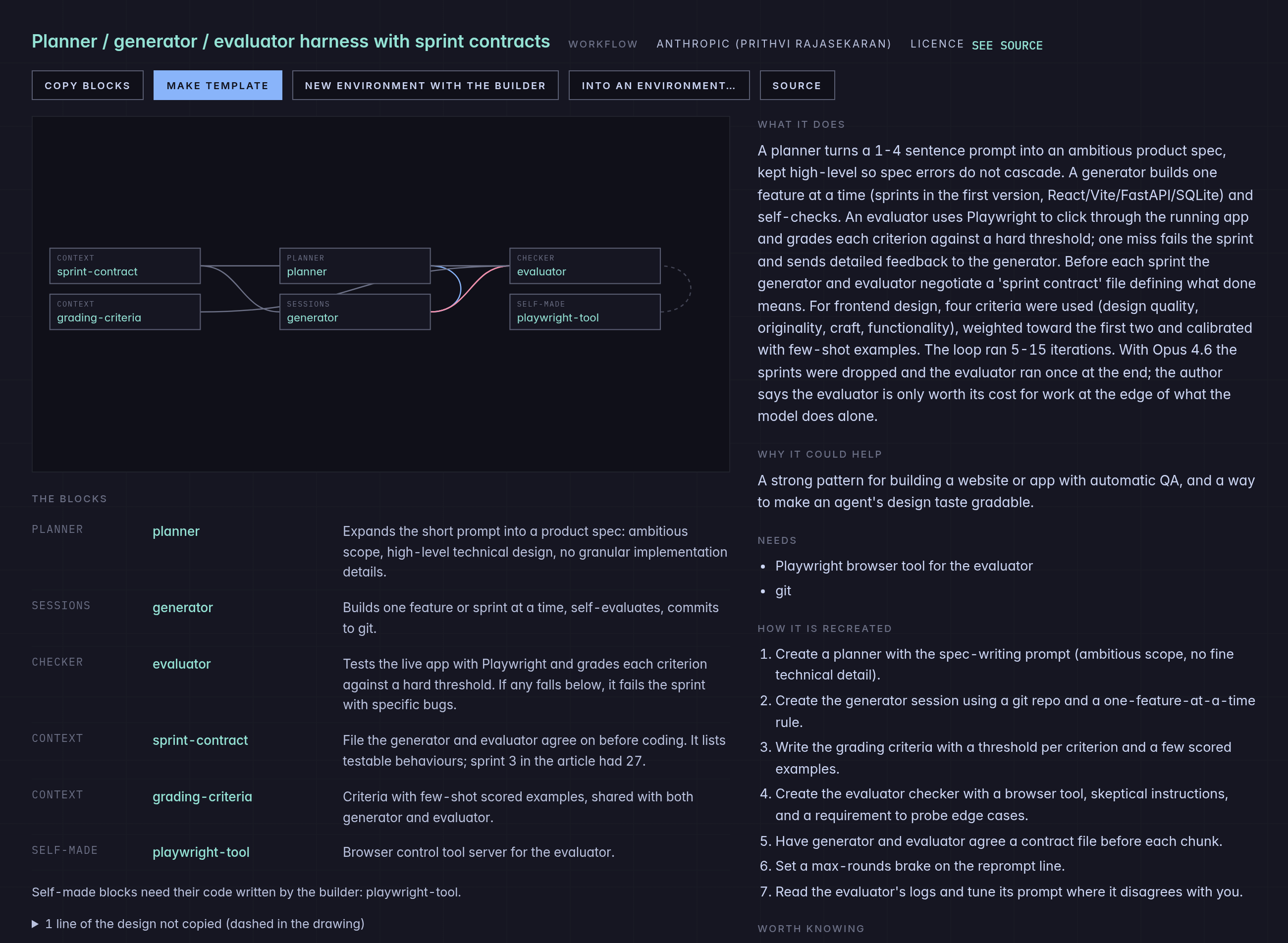
FIG. 7Library entry: a way of working drawn as blocks, ready to copy.
Modularity
My own app for working with AI agents, built from scratch. I put every way of working together myself: the logic from blocks in the builder, the look from widgets. The pictures are from the real program, with a made-up project.
All data in the screenshots is made up.